Bookkeeping clients are businesses whose books your firm manages directly. Each bookkeeping client uses one seat from your purchased bookkeeping seat pack.
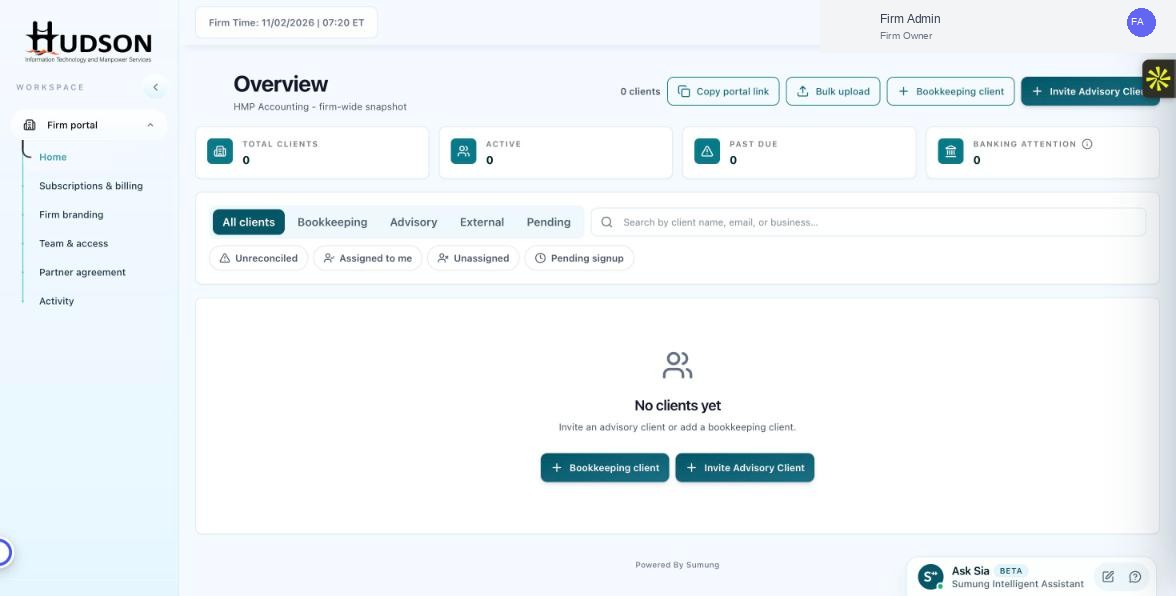
Add Bookkeeping Client button and empty state on Overview dashboard
What You Can Do
- On the Overview dashboard, click '+ Bookkeeping client' in the top-right area.
- Alternatively, click '+ Bookkeeping client' in the center of the empty client list area.
- Fill in the required business details: business name, owner email, and industry.
- Assign the client to a staff member if required.
- Click 'Create client' — the client account is created and uses one of your available seats.
- The new client will appear in the 'All clients' and 'Bookkeeping' tabs.
💡 Good to Know: You must have at least one available bookkeeping seat before adding a bookkeeping client. Purchase additional seats in Subscriptions & Billing.
💡 Good to Know: Mid-cycle seat additions are prorated to your next billing date.
💡 Good to Know: You can bulk-upload multiple clients at once using the 'Bulk upload' button.
Related Articles
Was this article helpful?
Your feedback helps us improve our documentation.