All changes in the Firm branding page must be saved explicitly using the 'Save branding' button. This article explains what happens when you save and what to do if changes do not appear.
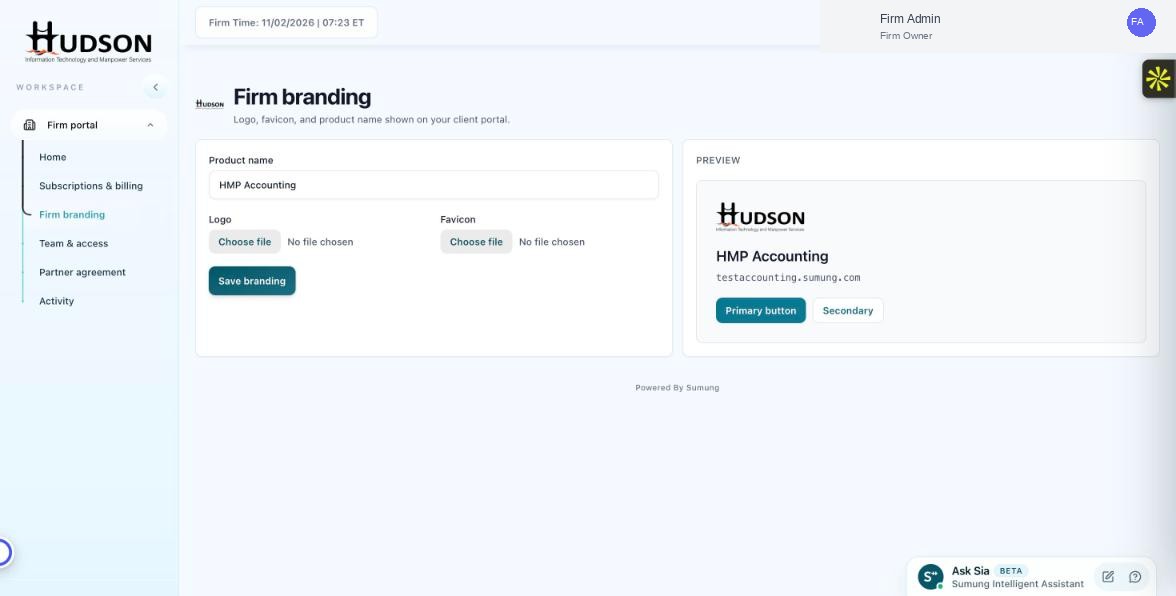
Save branding button in Firm branding
What You Can Do
- After making changes to product name, logo, or favicon, click the 'Save branding' button.
- A success toast message (e.g., 'Branding saved successfully') appears briefly.
- The portal header and any client-facing elements update immediately.
- If you leave the page without saving, your changes are lost.
- If changes do not appear after saving, do a hard refresh (Ctrl+Shift+R or Cmd+Shift+R) in the browser.
💡 Good to Know: Always click 'Save branding' before navigating away — there is no auto-save in this section.
💡 Good to Know: The Save button remains accessible at the bottom of the form — scroll down if needed.
Related Articles
Was this article helpful?
Your feedback helps us improve our documentation.