Firm Branding lets you customize the logo, favicon, and product name shown to clients in their portal experience. This is key to delivering a white-labeled service under your firm's identity.
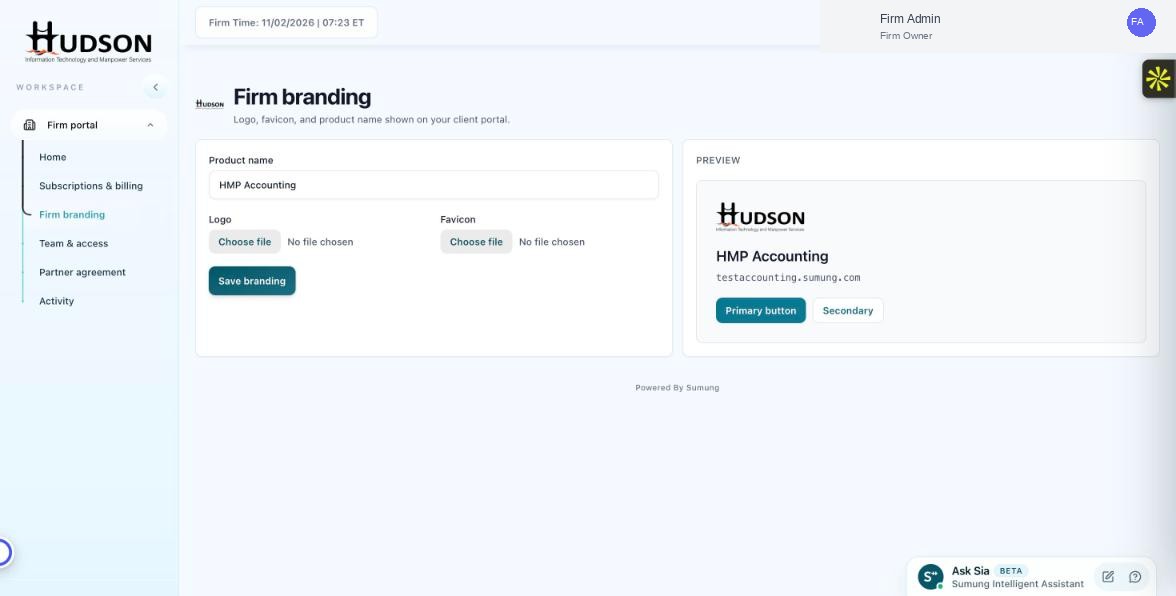
Firm branding page with logo, favicon, product name, and live preview
What You Can Do
- Navigate to Firm branding in the left sidebar.
- The page shows a form with 'Product name', 'Logo', and 'Favicon' fields, plus a live 'Preview' panel on the right.
- Enter your firm's name in the 'Product name' field.
- Click 'Choose file' under Logo to upload your firm logo.
- Click 'Choose file' under Favicon to upload your firm favicon.
- Click 'Save branding' to apply all changes.
- The Preview panel updates in real-time to show how clients will see your branding.
💡 Good to Know: Branding changes apply immediately after saving — no need to notify clients or refresh the portal.
💡 Good to Know: The preview panel shows your logo, product name, portal URL, and sample button styles.
Related Articles
Was this article helpful?
Your feedback helps us improve our documentation.