The client list on the Overview dashboard supports column-based sorting. You can sort by client name, status, assigned staff, or other columns to organize your view.
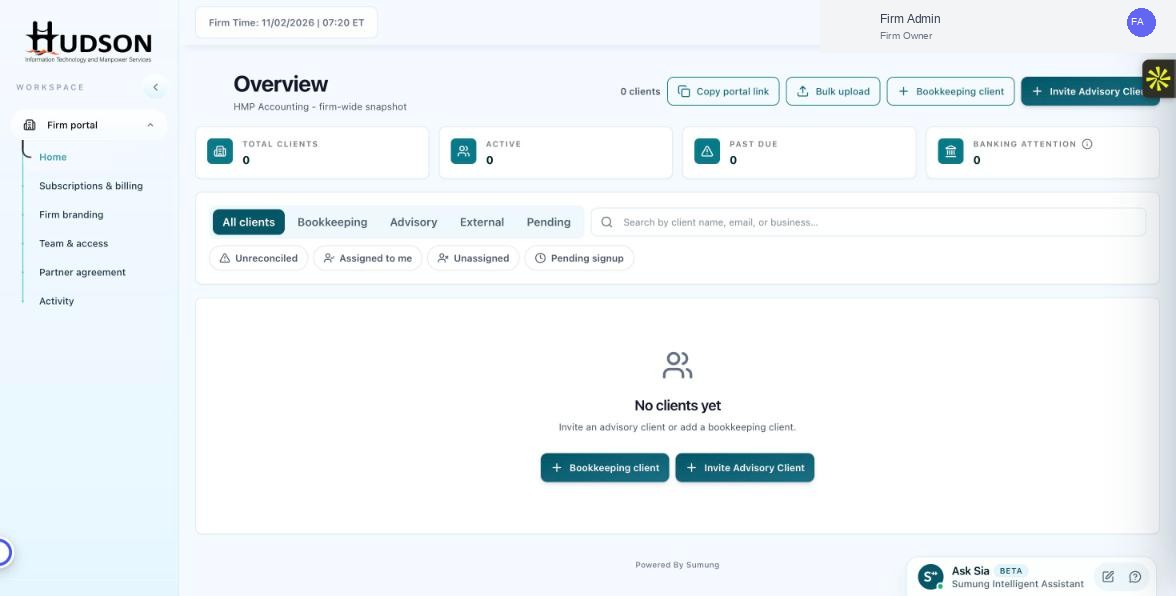
Client list with sortable column headers on the Overview dashboard
What You Can Do
- On the Overview dashboard, scroll to the client list table.
- Click on any column header (e.g., 'Name', 'Status', 'Assigned Staff') to sort by that column.
- Clicking the header once sorts in ascending order (A–Z or newest first).
- Clicking the same header again reverses the sort order (Z–A or oldest first).
- An arrow icon next to the header indicates the active sort column and direction.
💡 Good to Know: Sorting preferences are not saved between sessions — the list resets to default order on next login.
💡 Good to Know: You can combine sorting with filters and Quick Filters for more targeted views.
Related Articles
Was this article helpful?
Your feedback helps us improve our documentation.