Each activity log entry includes a timestamp that shows exactly when the action occurred. This article explains how to read and interpret these timestamps.
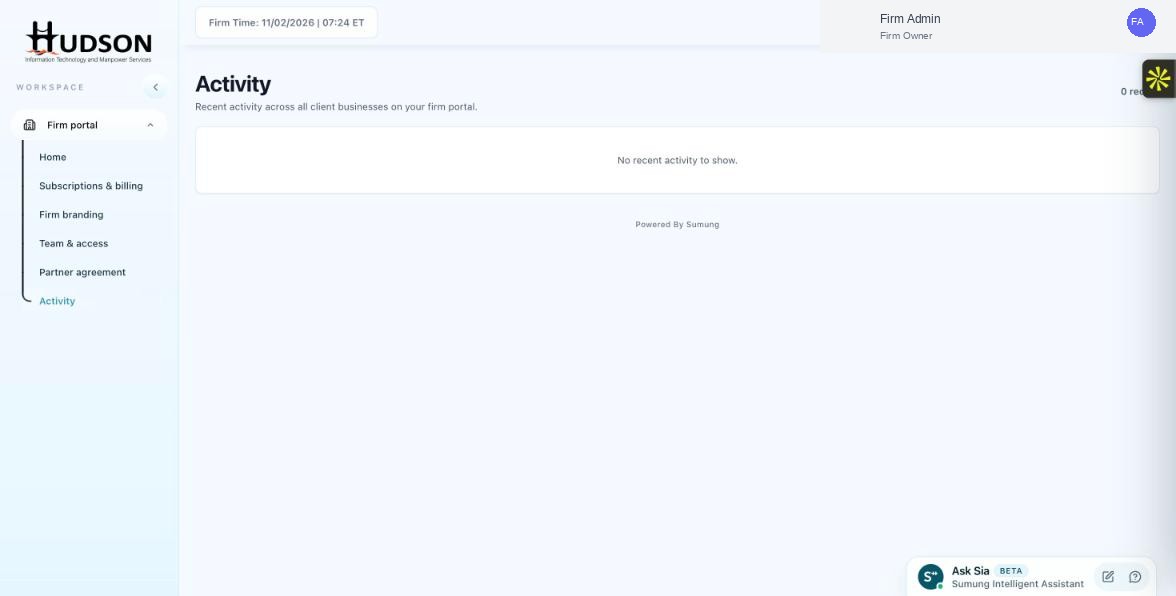
Activity page showing timestamp format
What You Can Do
- Navigate to Activity.
- Each log entry shows a date and time next to the event description.
- Timestamps are displayed in your firm's configured time zone (visible in the top bar as 'Firm Time').
- Time is shown in 12-hour or 24-hour format depending on your locale settings.
- For cross-timezone analysis, convert timestamps to UTC as needed.
- The most recent events appear at the top of the feed.
💡 Good to Know: If a timestamp seems incorrect, verify your firm's time zone setting in account settings.
💡 Good to Know: Activity log data is retained for a defined period — check with Sumung support for data retention policies.
Related Articles
Was this article helpful?
Your feedback helps us improve our documentation.