If all purchased bookkeeping seats are in use, you will not be able to add a new bookkeeping client until you purchase more. This article explains what happens and how to resolve it.
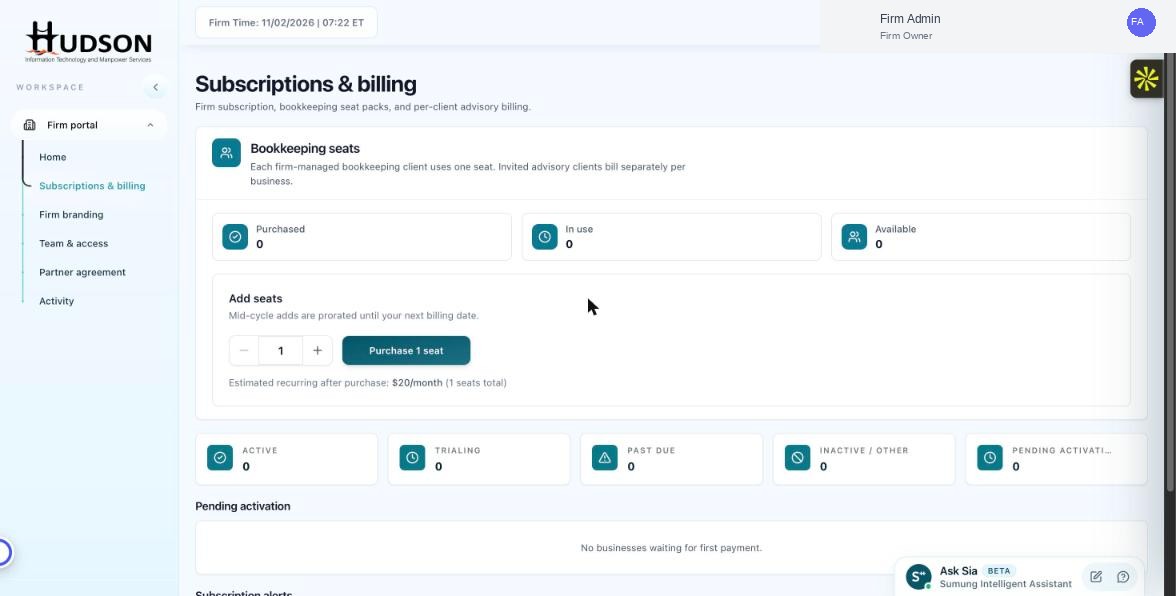
Add seats widget in Subscriptions & billing
What You Can Do
- Try to add a bookkeeping client when seats are at 0 — a warning message will appear: 'No seats available'.
- Navigate to Subscriptions & billing and click 'Add seats' in the Bookkeeping seats section.
- Increase the seat count by the number you need.
- Click 'Purchase X seat(s)' to confirm.
- Return to the Overview dashboard and add the new bookkeeping client.
💡 Good to Know: Plan your seat purchases in advance to avoid client onboarding delays.
💡 Good to Know: Consider purchasing buffer seats if you are onboarding multiple clients simultaneously.
Related Articles
Was this article helpful?
Your feedback helps us improve our documentation.