Assigning clients to specific staff members helps distribute workload and ensures every client has a dedicated accountant. This article explains how to assign and reassign clients.
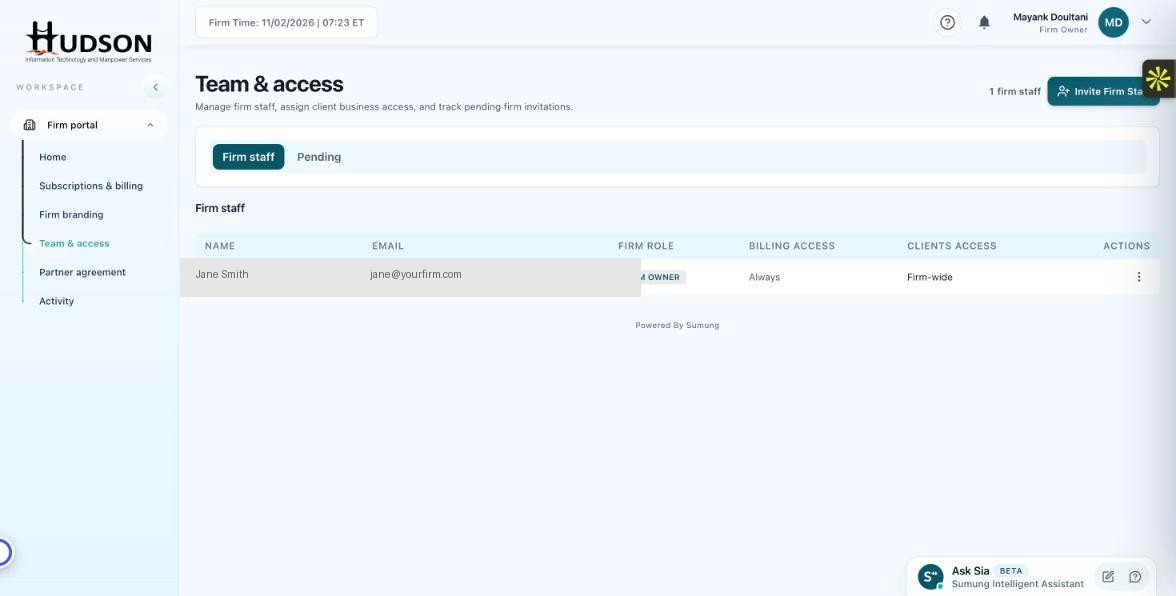
Team & access — firm staff list with assignment controls
What You Can Do
- From the Overview dashboard, locate the client you want to assign.
- Click the client's action menu (⋮) and select 'Assign staff'.
- In the dialog, choose the staff member from the dropdown.
- Click 'Save' — the assignment takes effect immediately.
- The staff member can now see this client in their 'Assigned to me' filtered view.
- To reassign, repeat the same process and choose a different staff member.
💡 Good to Know: Unassigned clients appear in the 'Unassigned' quick filter — regularly clear this list for best client coverage.
💡 Good to Know: Firm Owners can assign clients to any staff member; Staff can only view their own assignments.
Related Articles
Was this article helpful?
Your feedback helps us improve our documentation.