Staff members can quickly see their own client workload by using the 'Assigned to me' quick filter. This narrows the client list to only those clients assigned to the logged-in staff member.
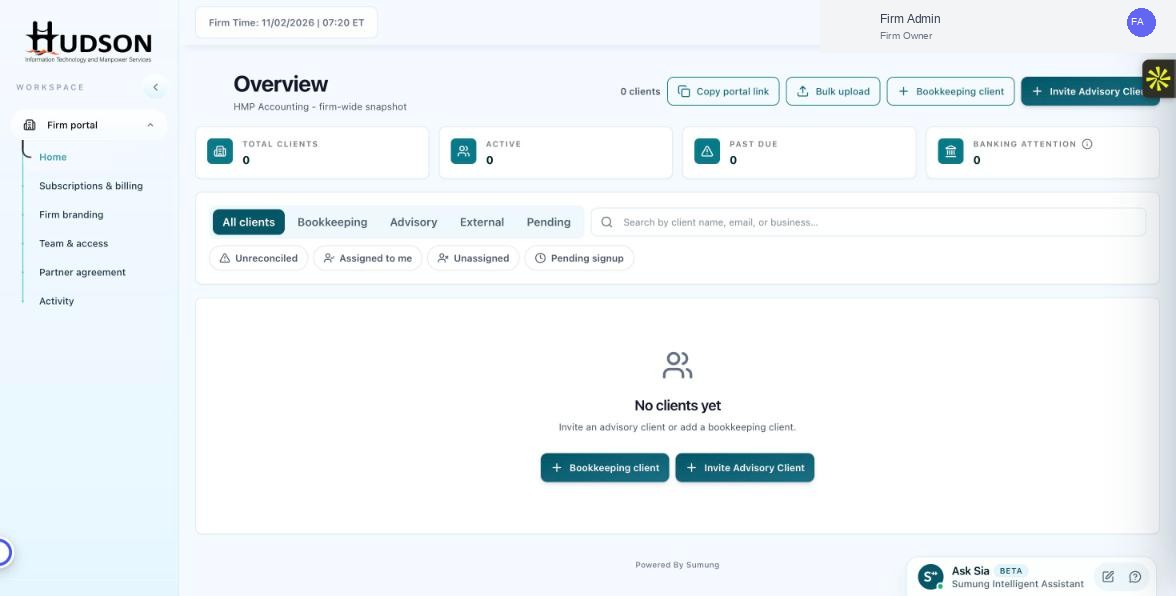
Assigned to me quick filter on the Overview dashboard
What You Can Do
- On the Overview dashboard, click the 'Assigned to me' quick filter chip.
- The client list filters to show only clients assigned to your staff account.
- Use this view as your daily workboard to manage your specific client responsibilities.
- Combine with other filters (e.g., 'Unreconciled') to further prioritize your tasks.
💡 Good to Know: Firm Owners can see all clients by default. 'Assigned to me' is most useful for staff members with a large firm.
💡 Good to Know: Reassigning a client to a different staff member will remove them from your 'Assigned to me' list.
Related Articles
Was this article helpful?
Your feedback helps us improve our documentation.