Staff roles can be changed as responsibilities evolve — for example, promoting a Staff member to Admin. This article explains how.
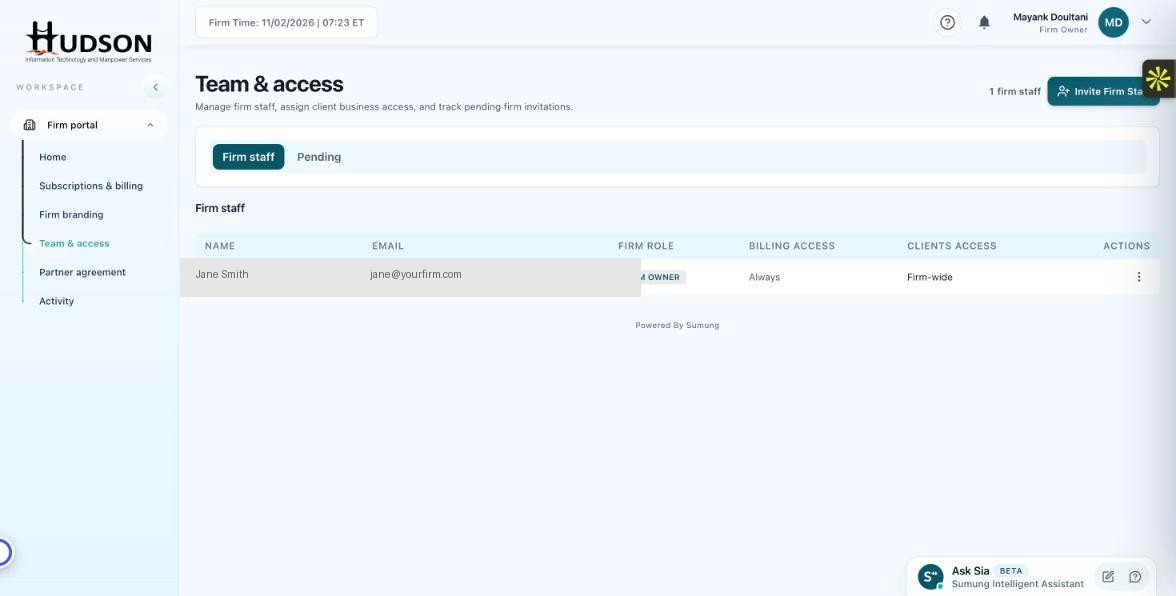
Team & access — Edit role via staff action menu
What You Can Do
- Navigate to Team & access.
- Find the staff member in the Firm staff list.
- Click their action menu (⋮).
- Select 'Edit role' or 'Edit permissions'.
- In the dialog, select the new role from the dropdown (e.g., Staff → Admin).
- Click 'Save' — the role change takes effect immediately.
- The new role badge appears in the Firm staff list.
💡 Good to Know: Role changes take effect on the staff member's next page load — notify them if their permissions have changed.
💡 Good to Know: Only Firm Owners can promote staff to Admin or Owner level.
Related Articles
Was this article helpful?
Your feedback helps us improve our documentation.