Growing your team? You can invite colleagues to join your firm portal and assign them a role. This article explains how.
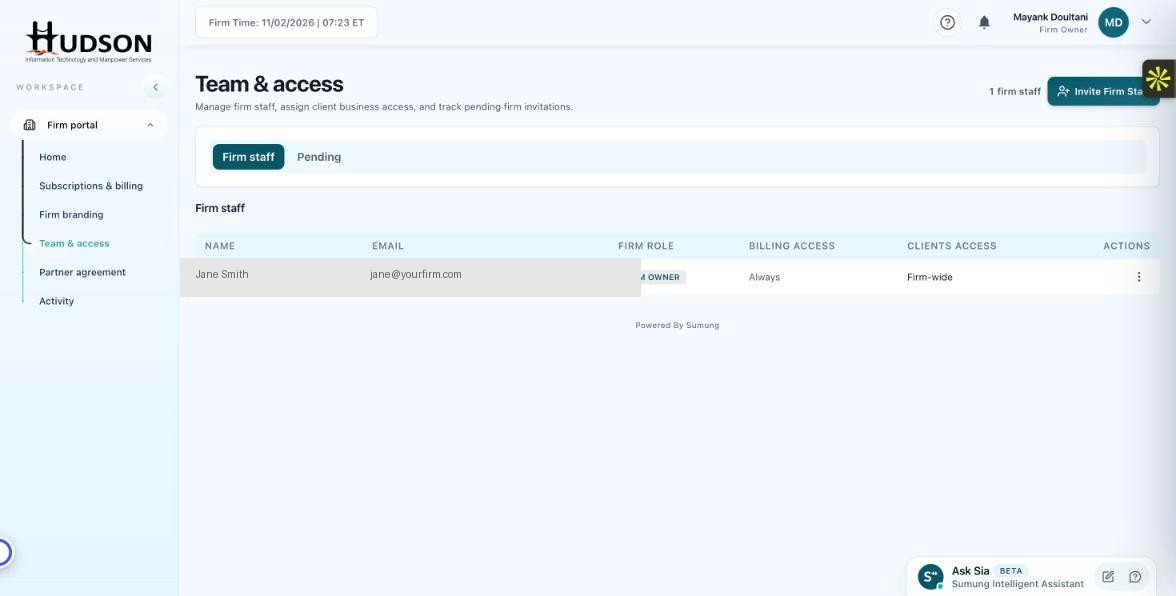
Team & access — Invite Firm Staff button
What You Can Do
- Navigate to Team & access in the sidebar.
- Click the 'Invite Firm Staff' button in the top-right area.
- In the invite dialog, enter the new staff member's email address.
- Select their Firm Role (e.g., Staff, Admin, Firm Owner).
- Optionally specify their Billing Access and Clients Access settings.
- Click 'Send invitation'.
- The invite appears in the 'Pending' tab until the staff member accepts it.
💡 Good to Know: The invited staff member receives an email to create their account or log in with an existing one.
💡 Good to Know: Pending invitations can be cancelled from the Pending tab's action menu.
Related Articles
Was this article helpful?
Your feedback helps us improve our documentation.