From the Overview dashboard, you can quickly navigate into any client's full accounting workspace to review their books, transactions, and reports.
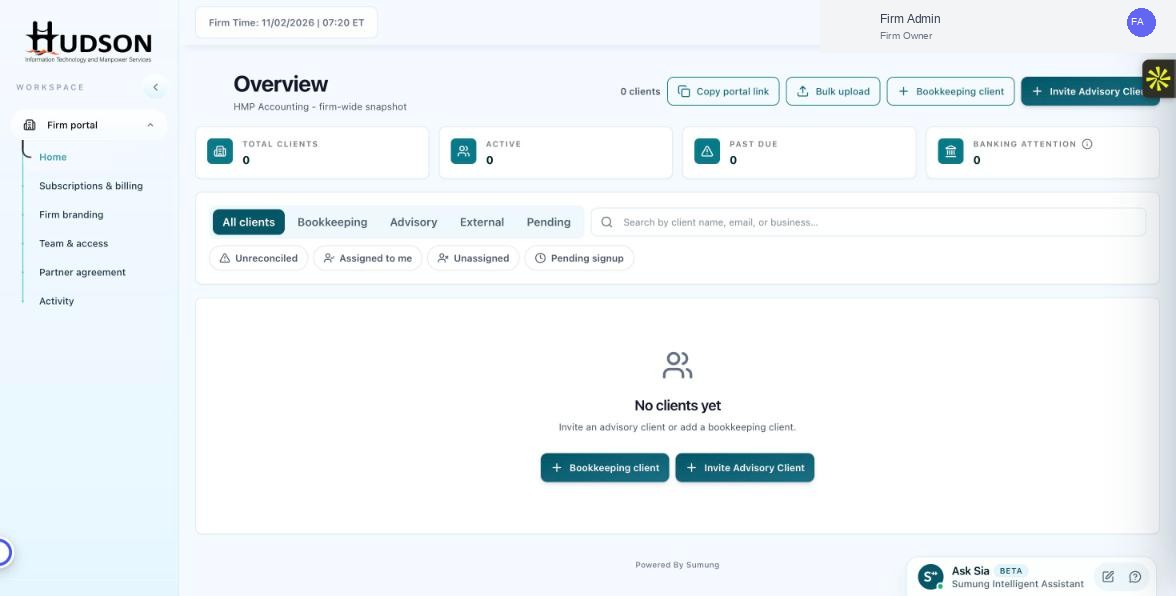
Client list on the Overview dashboard
What You Can Do
- On the Overview dashboard, locate the client in the list.
- Click on the client's business name or the row to open their client detail panel.
- From the detail panel, click 'Open account' or 'Go to books' to enter the client's accounting workspace.
- The workspace opens in the same tab — use the browser Back button or the portal logo to return to the Firm Portal.
- Alternatively, right-click the client row and select 'Open in new tab' to work in parallel.
💡 Good to Know: You can only access clients assigned to you (or all clients if you are a Firm Owner).
💡 Good to Know: Changes made inside a client's workspace are saved immediately.
Related Articles
Was this article helpful?
Your feedback helps us improve our documentation.