When a team member leaves your firm or no longer needs access, you should remove them from the portal immediately to maintain security.
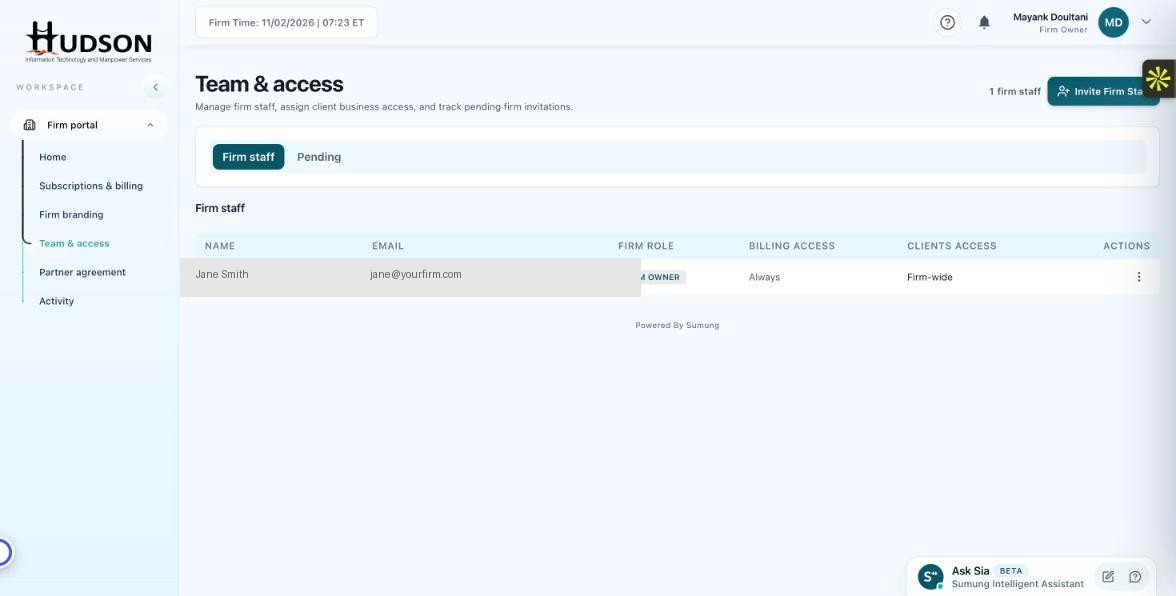
Team & access — staff member action menu
What You Can Do
- Navigate to Team & access.
- Find the staff member in the Firm staff list.
- Click their action menu (⋮) at the right end of their row.
- Select 'Remove staff' or 'Revoke access'.
- Confirm the removal in the dialog.
- The staff member is immediately removed from the list and loses portal access.
- Their client assignments are cleared — reassign those clients to another staff member.
💡 Good to Know: Removed staff members retain their Sumung user account — only their association with your firm is removed.
💡 Good to Know: Re-invite them via 'Invite Firm Staff' if access needs to be restored.
Related Articles
Was this article helpful?
Your feedback helps us improve our documentation.