The favicon appears in browser tabs and bookmarks. A branded favicon reinforces your firm's identity in your clients' browsers.
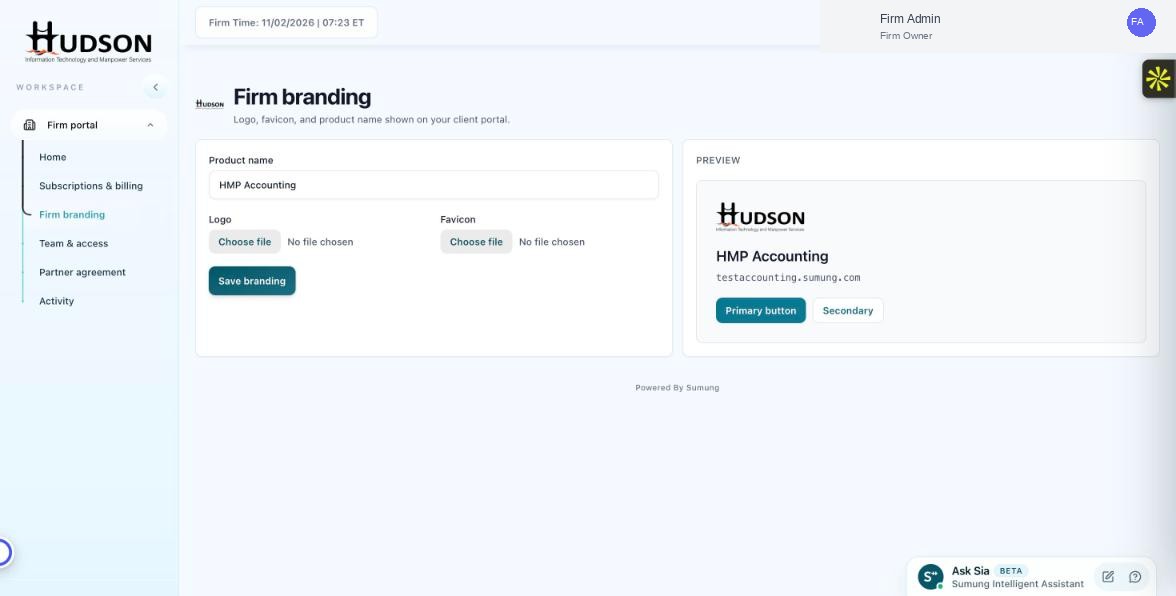
Firm branding — favicon upload section
What You Can Do
- Navigate to Firm branding.
- Under 'Favicon', click 'Choose file'.
- Select a favicon file. Recommended format: ICO or PNG, size 32×32 px or 64×64 px.
- The Preview panel on the right shows the favicon applied to the portal.
- Click 'Save branding' to apply.
💡 Good to Know: ICO files with multiple size variants (16×16, 32×32, 64×64) provide the best cross-browser compatibility.
💡 Good to Know: If you do not upload a favicon, the default Sumung favicon is used.
Related Articles
Was this article helpful?
Your feedback helps us improve our documentation.