The seat usage summary in Subscriptions & billing shows exactly how many of your purchased seats are currently occupied and how many remain available for new clients.
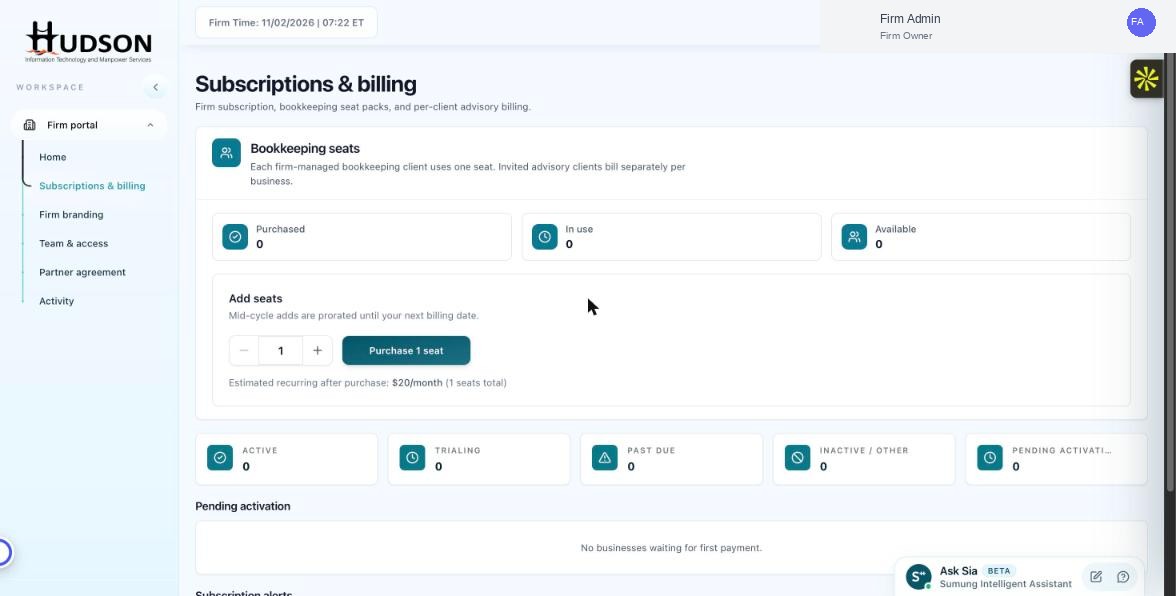
Bookkeeping seats section in Subscriptions & billing
What You Can Do
- Navigate to Subscriptions & billing.
- In the Bookkeeping seats section, read the three counters: Purchased, In use, Available.
- Purchased = total seats in your current subscription.
- In use = number of active bookkeeping clients.
- Available = Purchased minus In use.
- If Available reaches 0, you must purchase more seats before adding a new bookkeeping client.
💡 Good to Know: Seats occupied by inactive or deactivated clients are still counted as 'In use' until the client is removed.
💡 Good to Know: You can release a seat by deactivating a bookkeeping client from their account.
Related Articles
Was this article helpful?
Your feedback helps us improve our documentation.