The Seats Available counter at the top of the Overview dashboard shows how many bookkeeping seats are currently unoccupied. This helps you plan when to purchase more seats or archive inactive clients.
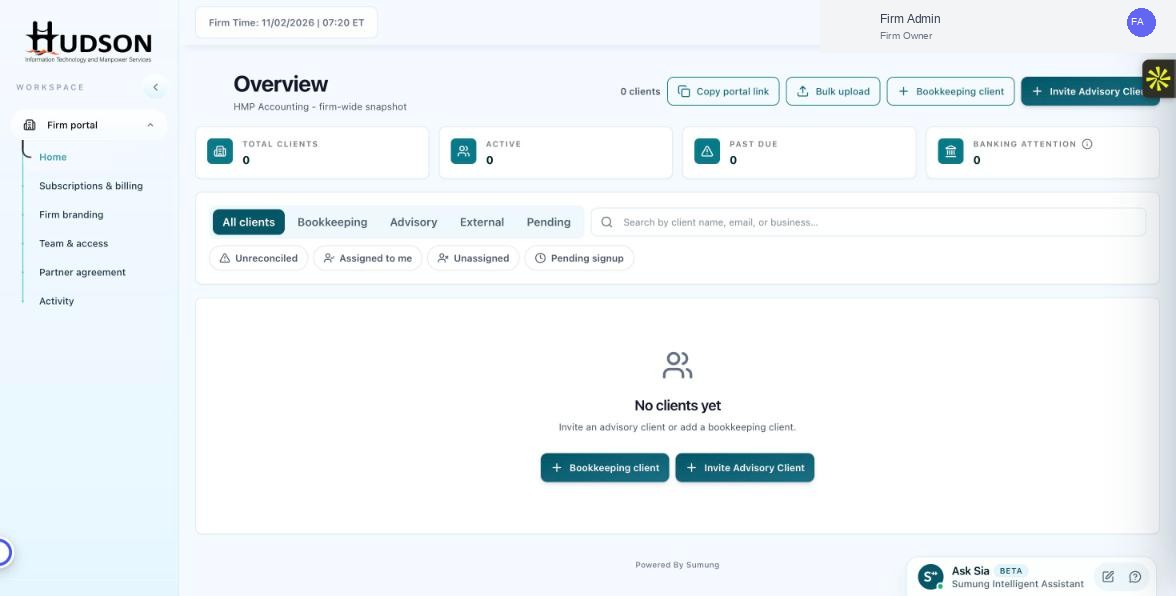
Seats available counter on the Overview dashboard
What You Can Do
- On the Overview dashboard, locate the seats counter next to the '+ Bookkeeping client' button.
- The counter displays as 'X/Y SEATS AVAILABLE' where X = available seats and Y = total purchased seats.
- When available seats reach 0, you cannot add a new bookkeeping client until you purchase more seats.
- Click '+ Bookkeeping client' when seats are available to create a new client.
- To add more seats, navigate to Subscriptions & billing and use the 'Add seats' option.
💡 Good to Know: Advisory clients do NOT use bookkeeping seats — they are billed per-business separately.
💡 Good to Know: Deactivating or archiving a bookkeeping client releases that seat back to your available count.
💡 Good to Know: Seat counts update instantly when a client is added or removed.
Related Articles
Was this article helpful?
Your feedback helps us improve our documentation.