Quick Filters let you instantly surface clients that need your attention — those with unreconciled transactions, clients assigned to you, clients with no staff assigned, or clients pending sign-up.
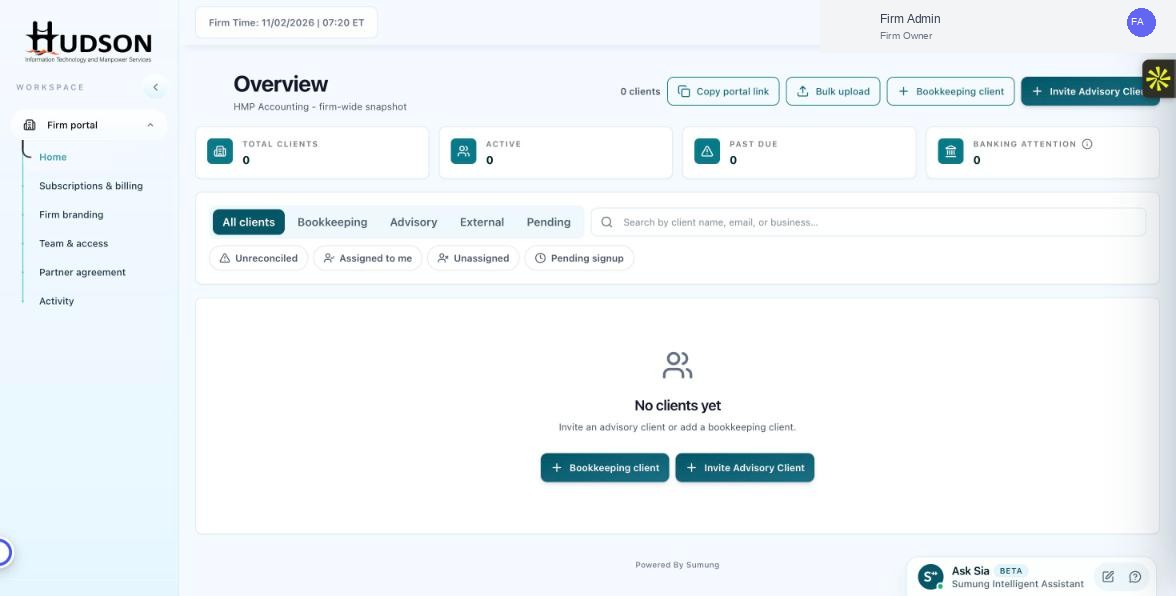
Quick filter chips on the Overview dashboard
What You Can Do
- On the Overview dashboard, look for the Quick Filter chips below the type tabs.
- Click 'Unreconciled' to show clients with transactions that need review.
- Click 'Assigned to me' to show clients specifically assigned to your staff account.
- Click 'Unassigned' to show clients that have no firm staff member assigned yet.
- Click 'Pending signup' to show clients who received an invitation but have not completed sign-up.
- Multiple quick filters can be active at the same time — they stack to narrow results further.
- Click an active filter chip again to deactivate it.
💡 Good to Know: 'Unreconciled' is especially useful during month-end close to ensure all client transactions are reviewed.
💡 Good to Know: 'Unassigned' clients may not receive timely support — assign a staff member to each client for best results.
Related Articles
Was this article helpful?
Your feedback helps us improve our documentation.