Firm Owners can view all client businesses in the portal, regardless of which staff member is assigned to each. Staff can view their assigned clients. This article explains how to access and review the complete client list.
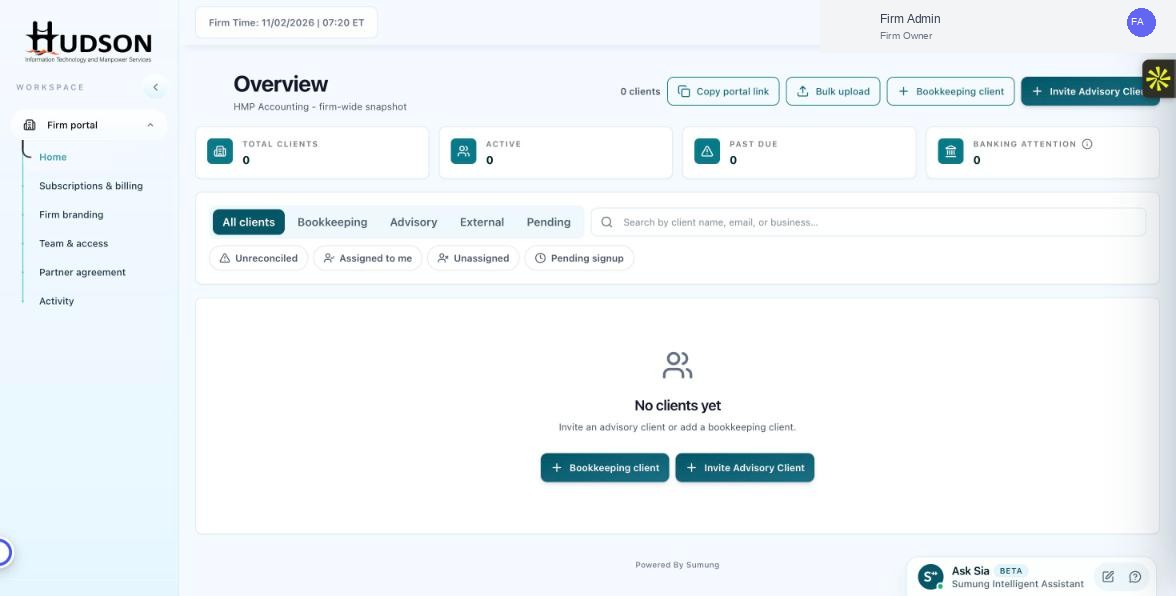
All clients tab on the Firm Portal Overview dashboard
What You Can Do
- Log in to the Firm Portal as a Firm Owner.
- Navigate to the Overview dashboard (Home).
- The 'All clients' tab is selected by default — this shows all clients across the firm.
- Use the column headers (Name, Status, Type, Assigned Staff) to sort the list.
- Use the search bar to locate a specific client quickly.
- Click any client row to open their detail panel.
💡 Good to Know: Staff members with limited access will only see clients assigned to them. Only Firm Owners and Admins see all clients.
💡 Good to Know: The total client count is shown in the top-right area of the dashboard header.
Related Articles
Was this article helpful?
Your feedback helps us improve our documentation.