When you invite a new staff member, they appear in the 'Pending' tab until they accept the invitation and complete their account setup.
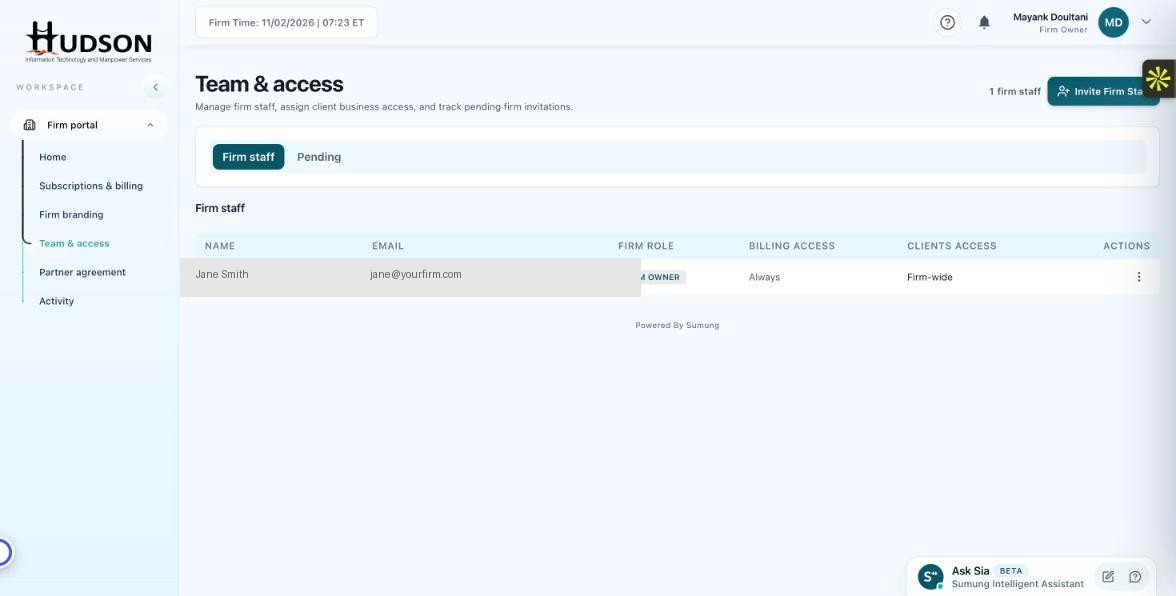
Team & access — Pending tab for staff invitations
What You Can Do
- Navigate to Team & access.
- Click the 'Pending' tab next to 'Firm staff'.
- A list of outstanding invitations is shown with the invitee's email, invitation date, and status.
- To resend an invitation, click the action menu (⋮) next to the entry and select 'Resend'.
- To cancel an invitation, select 'Cancel invitation'.
- Once the invitee accepts, they move to the Firm Staff tab automatically.
💡 Good to Know: Invitations typically expire after 7 days — resend if the invitee has not acted in time.
💡 Good to Know: A pending invitation does not count toward your staff limit (if applicable).
Related Articles
Was this article helpful?
Your feedback helps us improve our documentation.