Your firm profile shows your name, email, and role (e.g., Firm Owner) within the portal. This information determines what you can access and manage.
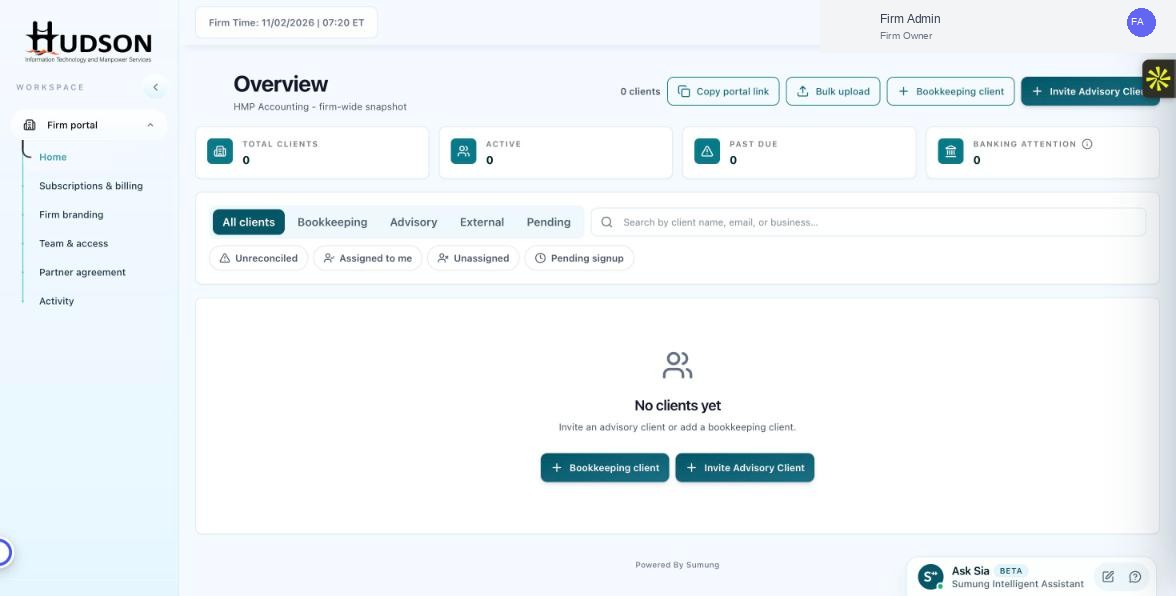
Firm Owner profile display in the top navigation bar
What You Can Do
- In the top-right corner of the Firm Portal, you will see your name and role (e.g., 'Firm Admin — Firm Owner').
- Click on your name or the profile icon (MD initials avatar) to open the profile dropdown.
- The dropdown shows your name, email address, and current role.
- From here you can access Account Settings, change your password, or log out.
💡 Good to Know: Only Firm Owners can change the roles of other team members.
💡 Good to Know: Your role badge (e.g., Firm Owner) is visible in the Team & Access section.
Related Articles
Was this article helpful?
Your feedback helps us improve our documentation.