The Preview panel in Firm branding shows a live mockup of how clients will see your branding. This article explains each element in the preview.
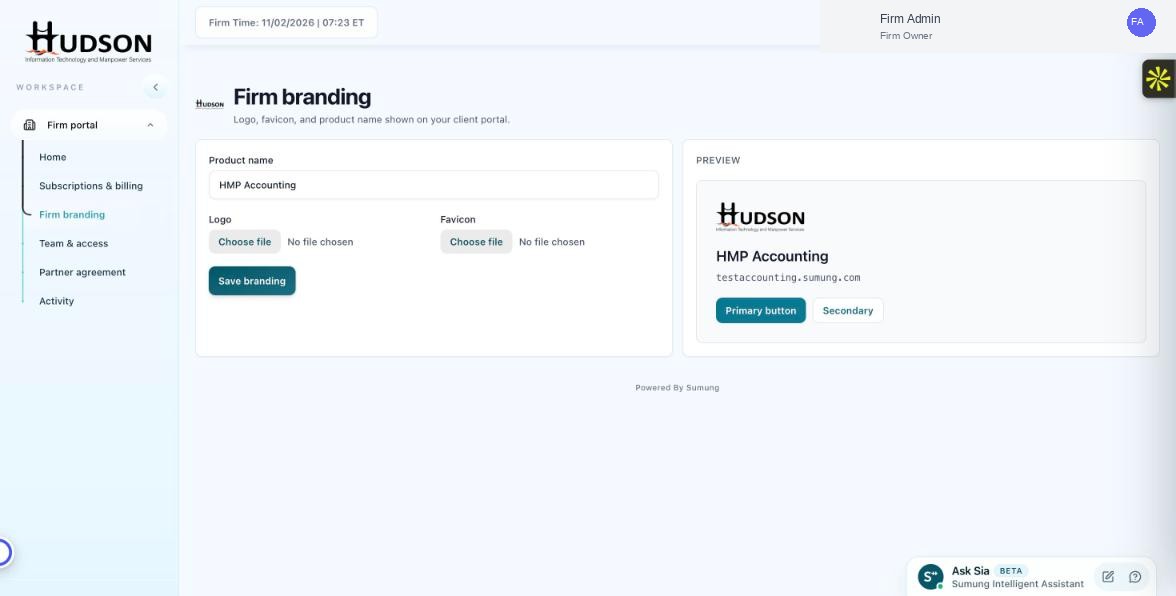
Firm branding — live preview panel
What You Can Do
- Navigate to Firm branding.
- On the right side of the page, the 'Preview' panel shows a simulated portal view.
- The logo appears at the top-left of the preview, as it will in the client portal.
- Below the logo, the product name is shown (e.g., 'HMP Accounting').
- The portal URL (e.g., testaccounting.sumung.com) is shown as the address line.
- Two sample buttons ('Primary button', 'Secondary button') show how your chosen color scheme applies to UI elements.
💡 Good to Know: The preview is a simulation — some complex layouts may look slightly different in the live portal.
💡 Good to Know: Changes to logo, favicon, and product name are reflected in the preview instantly as you upload or type.
Related Articles
Was this article helpful?
Your feedback helps us improve our documentation.