Each client row in the Overview dashboard has an action menu (⋮) that gives you quick access to common actions like opening the workspace, reassigning staff, sending reminders, and more — without needing to navigate into the client's account first.
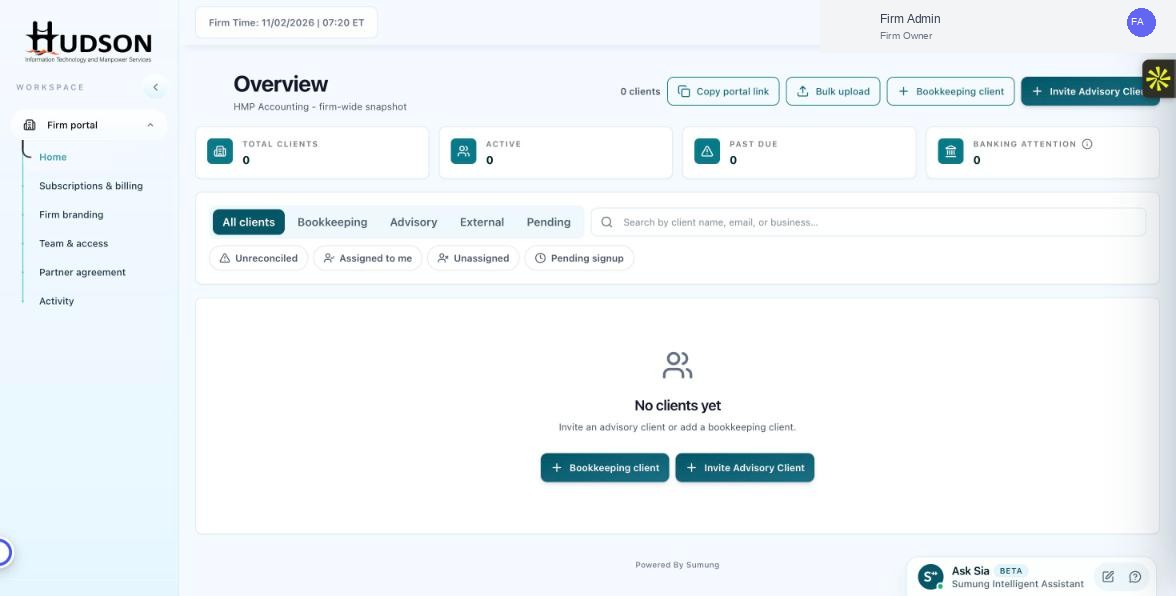
Client action menu on the Overview dashboard
What You Can Do
- On the Overview dashboard, locate the client you want to manage.
- Click the action menu icon (⋮) at the right end of the client's row.
- A dropdown menu appears with available actions based on the client's type and status.
- Common actions include: 'Open account', 'Assign staff', 'Resend invitation', 'Send payment reminder', 'Edit client details', 'Deactivate client'.
- Click the desired action — it takes effect immediately or opens a confirmation dialog.
💡 Good to Know: Available actions differ depending on the client's type (Bookkeeping, Advisory) and status (Active, Pending, Past Due).
💡 Good to Know: Irreversible actions (like deactivating a client) always show a confirmation dialog before executing.
Related Articles
Was this article helpful?
Your feedback helps us improve our documentation.