The Subscriptions & billing page gives a complete view of your firm's subscription health — seats purchased vs. used, client payment statuses, and subscription alerts.
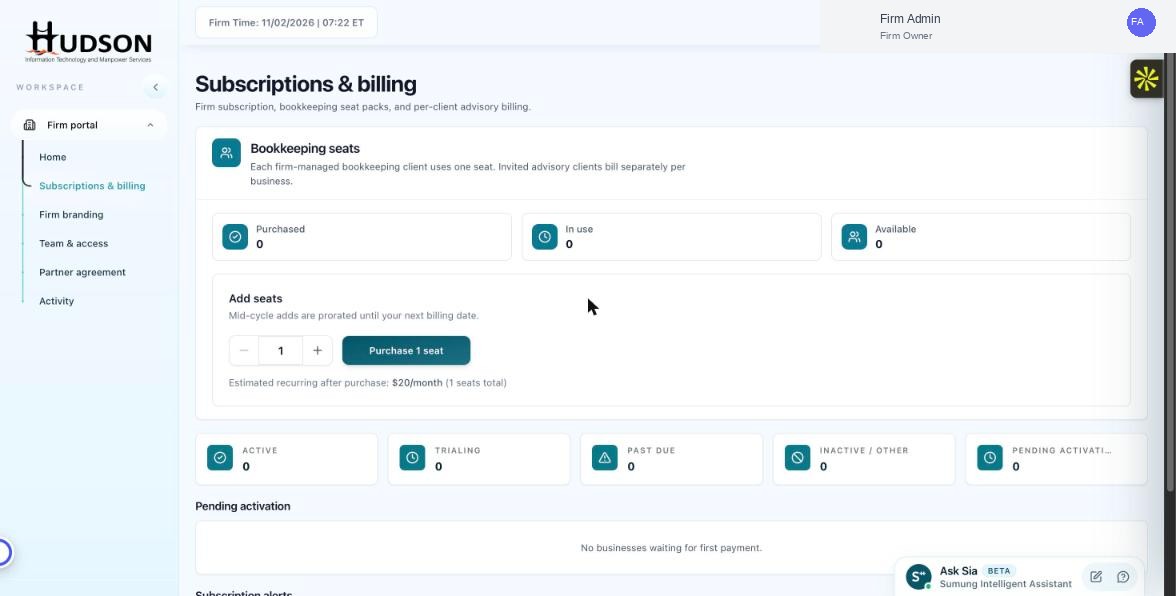
Subscriptions & billing overview dashboard
What You Can Do
- Navigate to Subscriptions & billing in the sidebar.
- The 'Bookkeeping seats' card shows Purchased, In use, and Available counts.
- The 'Add seats' widget lets you adjust your seat count.
- Client subscription stats (Active, Trialing, Past Due, Inactive/Other, Pending Activation) are shown as metric cards.
- Below the metrics, 'Pending activation' lists clients who have signed up but not yet paid.
- Subscription Alerts (below the fold) flag any billing issues requiring your attention.
💡 Good to Know: Regularly reviewing the billing dashboard helps you catch payment failures before they impact client access.
💡 Good to Know: The Trialing count helps you gauge upcoming conversion opportunities.
Related Articles
Was this article helpful?
Your feedback helps us improve our documentation.